

Download Screen Record – User‑Friendly Screen Recorder for Windows, Mac, Android & iOS
Overview
Screen Record is a lightweight yet powerful screen‑recording utility designed for personal computers and mobile devices. Whether you need to create a polished online presentation, capture a software demo for a client, or simply send a screenshot‑style video to a technician, Screen Record delivers a seamless, WYSIWYG (what you see is what you get) experience. The application lets you record a specific region of the screen, the full desktop, or even a single window, and it supports simultaneous audio capture from your microphone or system sound.
With an installation footprint of only 11.8 MB, the program stays out of the way while still offering a professional‑grade toolset. Trim, clip, and compress recordings without leaving the interface, ensuring the final file matches your desired size and format. The built‑in timer, on‑screen text overlay, and simple hot‑key configuration make it an ideal solution for educators, developers, marketers, and anyone who needs to communicate visually.
Key Features
- Full‑Screen & Region Capture: Choose to record the entire display, a custom rectangle, or a single application window.
- Audio Integration: Record system audio, microphone input, or both, perfect for voice‑over tutorials.
- WYSIWYG Rendering: The output video mirrors exactly what you see on screen, preserving resolution and frame rate.
- Built‑in Editing Tools: Trim unwanted sections, clip clips to a precise length, and add text annotations directly within the app.
- Recording Timer & Scheduler: Set a countdown or schedule recordings to start automatically at a chosen time.
- Lightweight Installation: Requires only 11.8 MB of disk space and runs efficiently on older hardware.
- Multi‑Platform Support: Available for Windows, macOS, Android, and iOS, with synchronized cloud storage options.
- Export Flexibility: Save recordings in MP4, AVI, or MOV formats, and choose compression levels to control file size.
- Secure Updates: Automatic, signed updates keep the software safe from vulnerabilities.
- Hot‑Key Customization: Assign your own keyboard shortcuts for start/stop, pause, and screenshot capture.
Installation & Usage Instructions
Step‑by‑Step Installation
Downloading and installing Screen Record is straightforward:
- Visit the official website and click the Download button that matches your operating system (Windows, macOS, Android, or iOS).
- For Windows/macOS, run the installer file (
.exeor.dmg) and follow the on‑screen wizard. The process takes less than two minutes. - On mobile devices, the app appears in the respective app store. Tap Install and wait for the download to complete.
- After installation, launch Screen Record. The first run will prompt you to grant screen‑capture and microphone permissions – essential for full functionality.
- Accept the optional telemetry agreement if you wish to help improve the product; this can be disabled later in settings.
How to Record Your First Video
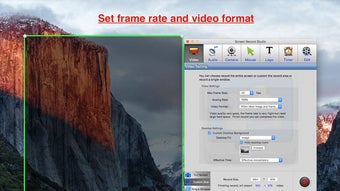
Once the program is open, the main dashboard presents three primary options: Full Screen, Region, and Window. Choose the mode that fits your scenario, then click the Record button or press the pre‑configured hot‑key (default Ctrl + Alt + R on Windows). If you need audio, toggle the microphone and system‑sound icons before you start.
During recording, a slim overlay toolbar appears in the corner, offering pause, resume, and a live timer. To add on‑screen text, click the Text icon, type your note, and position it where you want it to appear. When you’re satisfied, hit Stop or press the hot‑key again. The video automatically opens in the built‑in editor where you can trim the start and end points, split the clip, or adjust the compression level.
Finally, click Export, select your desired format, and choose a destination folder. The file is ready to be shared via email, uploaded to a cloud service, or embedded in a presentation. The intuitive workflow ensures that even users with no prior video‑editing experience can produce high‑quality recordings within minutes.
Compatibility & System Requirements
Windows: Windows 7, 8, 10, and 11 (64‑bit). Minimum CPU: Intel Core i3 or equivalent; RAM: 2 GB; GPU: DirectX 11 compatible.
macOS: macOS 10.13 (High Sierra) or later. Minimum CPU: Intel Core i3; RAM: 2 GB; GPU: Metal‑compatible.
Android: Android 6.0 (Marshmallow) and up. Requires at least 1 GB RAM and a device capable of screen‑recording via the Android MediaProjection API.
iOS: iOS 12.0+ on iPhone, iPad, and iPod Touch. Utilizes the native ReplayKit framework for capture.
Because the software is built with a modular architecture, updates for each platform are released independently, guaranteeing that Windows users receive the latest DirectX optimizations while macOS users benefit from Metal enhancements. The application also supports high‑DPI displays, ensuring crisp output on 4K monitors and Retina screens. For enterprise environments, administrators can deploy the installer via group policy or mobile device management (MDM) solutions, simplifying large‑scale rollouts.
Pros & Cons
Advantages
- Very small installation size (11.8 MB) keeps system impact low.
- Accurate WYSIWYG capture preserves original video quality.
- Integrated editing tools eliminate the need for third‑party software.
- Cross‑platform availability makes it a single solution for mixed device fleets.
- Customizable hot‑keys improve workflow efficiency.
- Free version includes core features; premium upgrade adds batch processing and cloud sync.
Disadvantages
- Advanced video codecs (e.g., HEVC) are only available in the paid tier.
- No built‑in live‑streaming functionality; users must pair with external services.
- While the UI is clean, it may feel too minimal for power users who expect deeper timelines.
- Export presets are limited to three formats; additional formats require manual configuration.
Frequently Asked Questions
Can Screen Record capture video from streaming services like YouTube?
Yes. Screen Record captures whatever is displayed on your screen, including embedded YouTube videos. However, keep in mind that some streaming platforms may have DRM protection that could affect the quality or legality of the capture. Always respect copyright and use recordings for personal or educational purposes.
Is there a limit on the length of recordings?
The free version does not impose a strict time limit, but very long recordings may result in large file sizes. The built‑in compression settings allow you to reduce file size without noticeable quality loss. For unlimited, high‑resolution recordings, consider the premium license.
How secure are the automatic updates?
Updates are digitally signed and delivered over HTTPS. This ensures that only authentic, untampered packages are installed on your system, protecting you from potential malware.
Can I schedule recordings to start at a specific time?
Yes. The scheduler feature lets you set a start time, duration, and even choose a predefined region to capture. This is handy for capturing webinars or automated demos without being present.
Does Screen Record work on laptops with integrated graphics?
Absolutely. The application is optimized for both integrated and dedicated GPUs. On low‑end machines, you may want to reduce the recording frame rate (e.g., 30 fps) to maintain smooth performance.
Final Verdict & Call to Action
Screen Record strikes an impressive balance between simplicity and capability. Its modest footprint, cross‑platform reach, and WYSIWYG fidelity make it a top choice for anyone who needs to turn screen activity into shareable video content quickly. While power users might miss advanced codec support and live‑streaming options, the core feature set—region capture, audio layering, built‑in editing, and scheduling—covers the vast majority of everyday scenarios, from remote tech support to polished product demos. The free tier provides enough functionality for personal and educational use, and the affordable premium upgrade unlocks professional‑grade compression and cloud sync.
If you’re looking for a reliable, secure, and easy‑to‑learn screen recorder that works on Windows, macOS, Android, and iOS, download Screen Record today and start creating high‑quality videos in minutes. Click the button below to get the latest version, enjoy automatic updates, and experience a tool that truly reflects what you see on your screen.
Download Screen Record Now